How to Use the Web UI
Important
Before you begin, make sure you have installed imgcompress. This setup is required to access the Web UI.
The Web UI is the primary way to interact with imgcompress. It provides a user-friendly interface for uploading, configuring, and processing images.
✨ Features
- Drag & Drop: Upload images or PDF files directly.
- Live Progress: Watch the compression in real-time.
- Bulk Processing: Handle hundreds of images at once.
- ZIP Download: Get all your optimized images in a single archive.
- Modern Formats: Full support for AVIF a modern format that combines high compression with transparency support.
📁 Supported Output Formats
Choose the best format for your needs directly from the settings menu:
| Format | Transparency | Best Use Case |
|---|---|---|
| AVIF | ✅ Yes | Recommended. Modern format with superior compression. Much smaller than JPEG/PNG while keeping high quality. |
| PNG | ✅ Yes | Best for images where pixel-perfect lossless quality is required. |
| JPEG | ❌ No | Ideal for standard web photos where transparency is not needed. |
| ICO | ✅ Yes | Used specifically for website favicons and app icons. |
🚀 Usage Steps
| Step | Screenshot | Description |
|---|---|---|
| 1 | 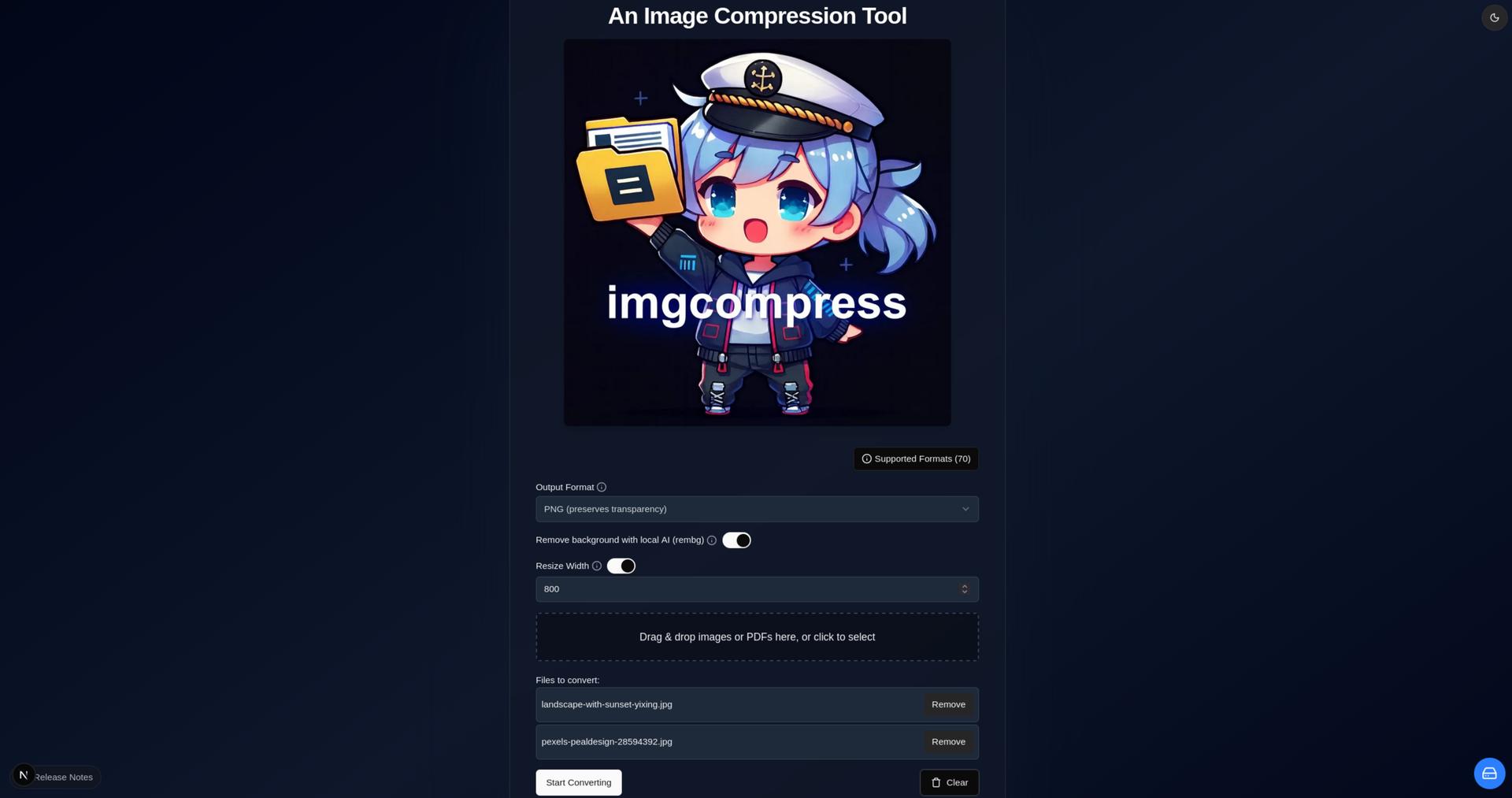 |
Upload & Configure Drag & drop images or PDFs, choose your format (JPEG, PNG, AVIF), and configure options. |
| 2 | 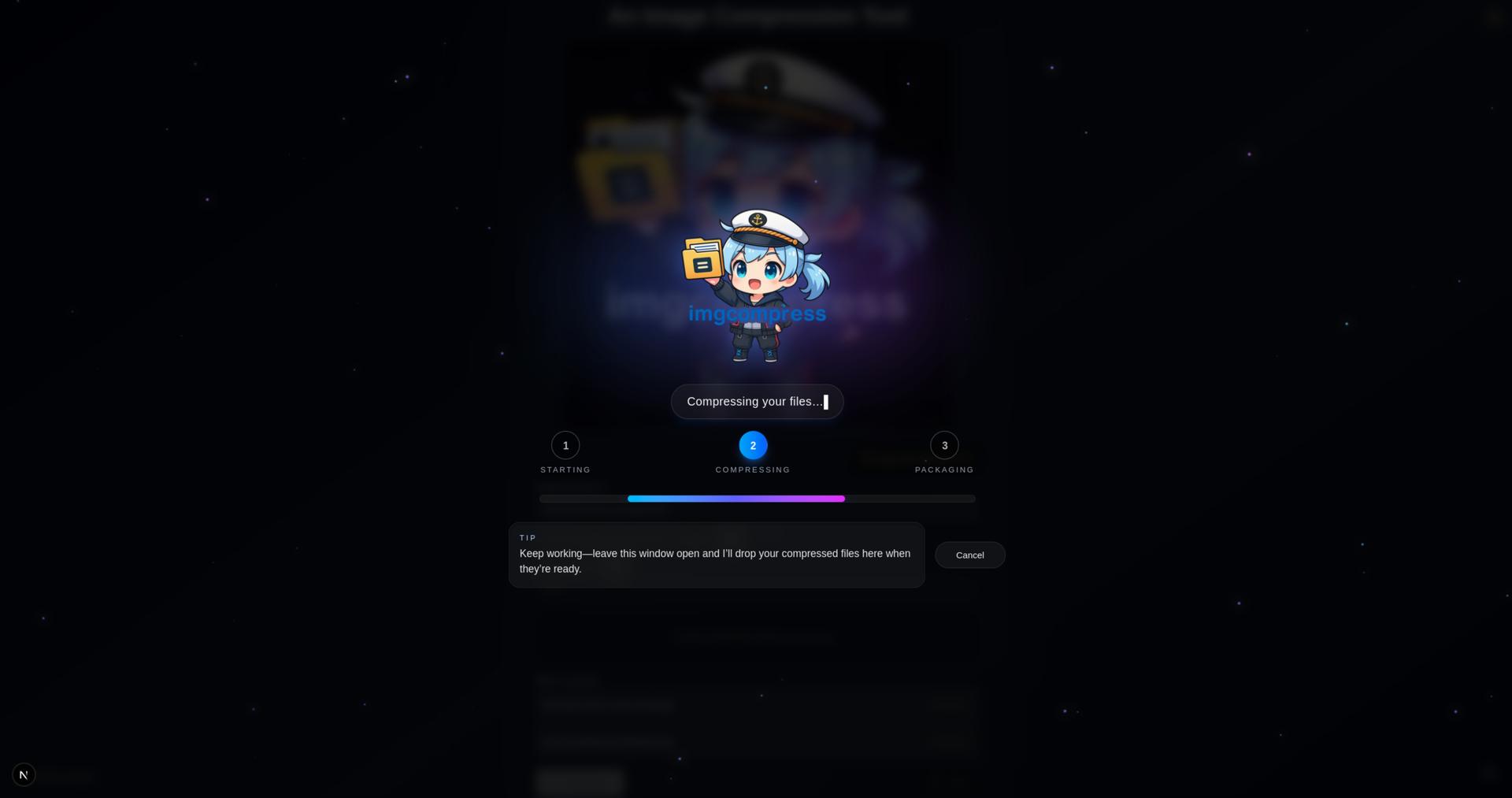 |
Processing Images are processed locally with live progress feedback. |
| 3 | 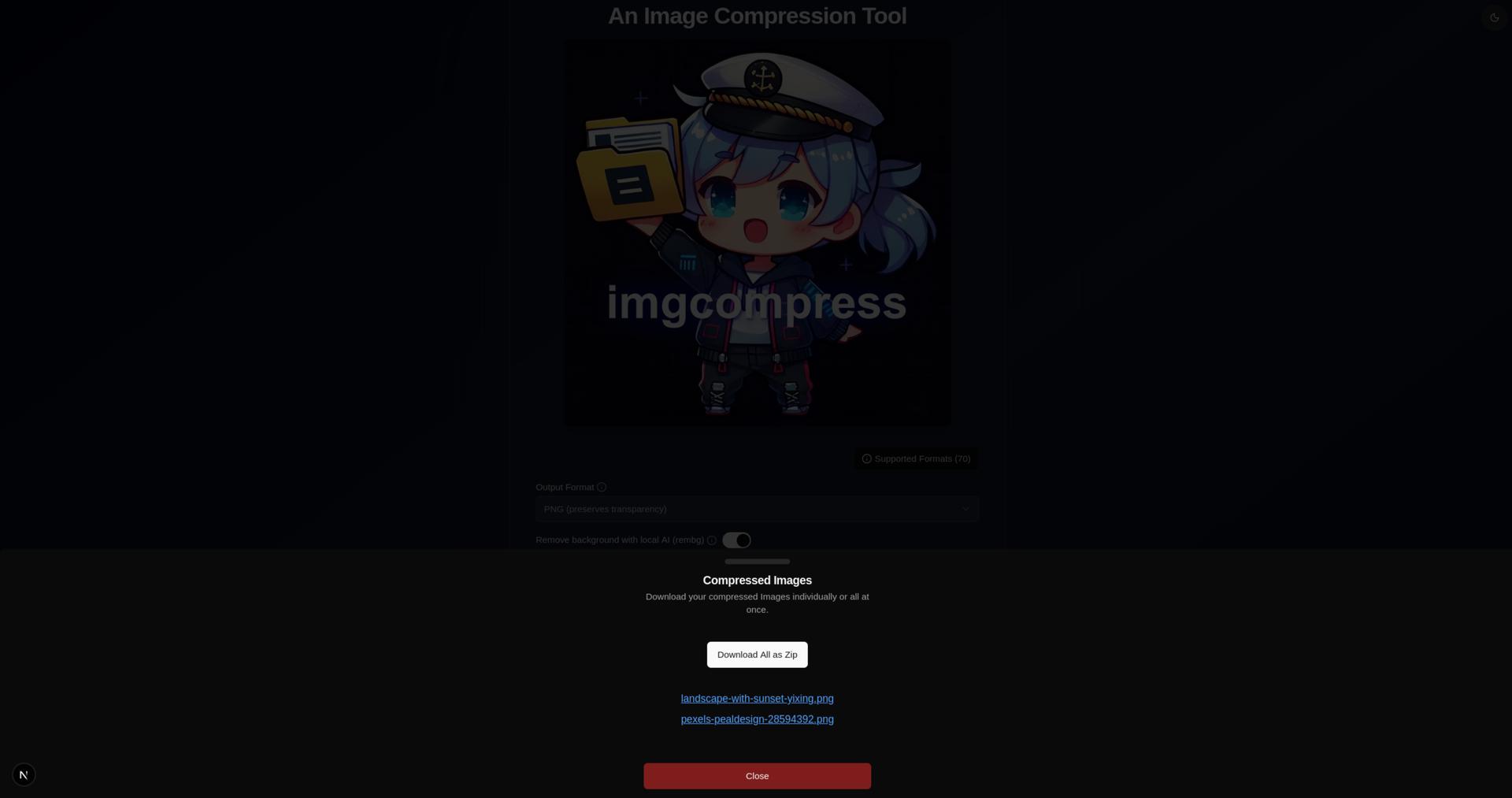 |
Download Results Download files individually or as a ZIP archive. |
🧠 Local AI Background Removal
Remove backgrounds instantly using the local AI model in imgcompress (powered using rembg).
Supported Formats: PNG & AVIF
This feature requires an output format that supports transparency: PNG or AVIF.
Pro Tip: Why use AVIF for Background Removal?
AVIF supports transparency just like PNG but with superior compression. This allows you to remove backgrounds and keep the resulting file size incredibly small without sacrificing quality.
| Step | Screenshot | Description |
|---|---|---|
| 1 | 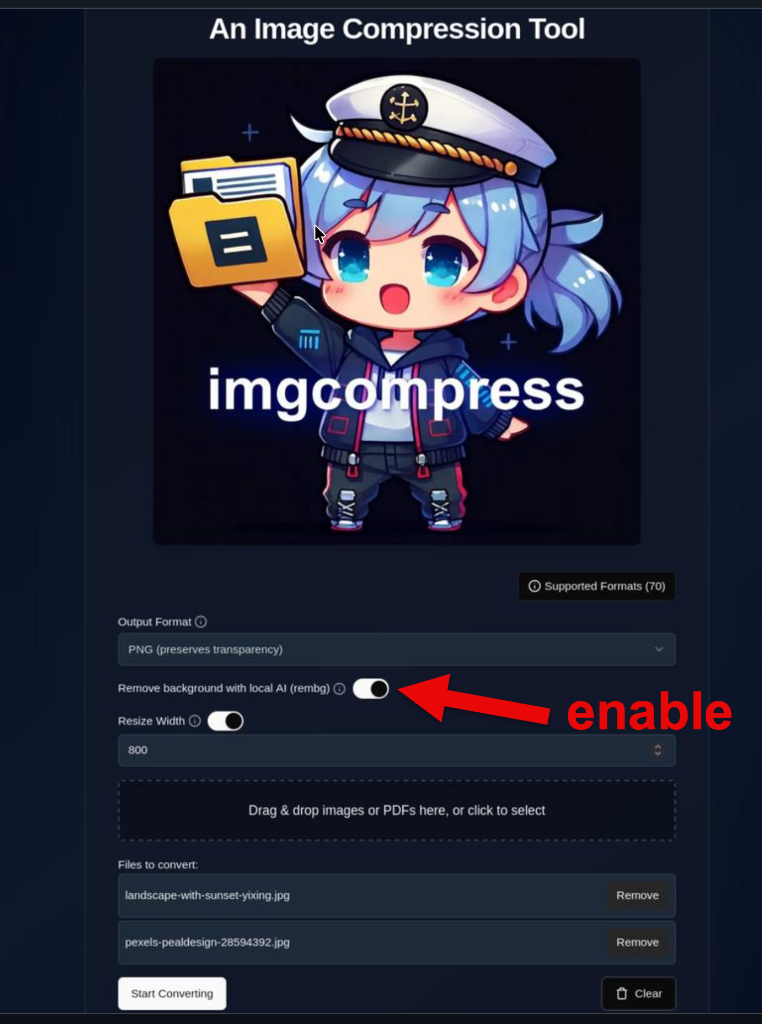 |
Toggle Background Removal Select PNG or AVIF as the target format and toggle the Remove Background switch. |
| Original Image | Background Removed (Local AI) |
|---|---|
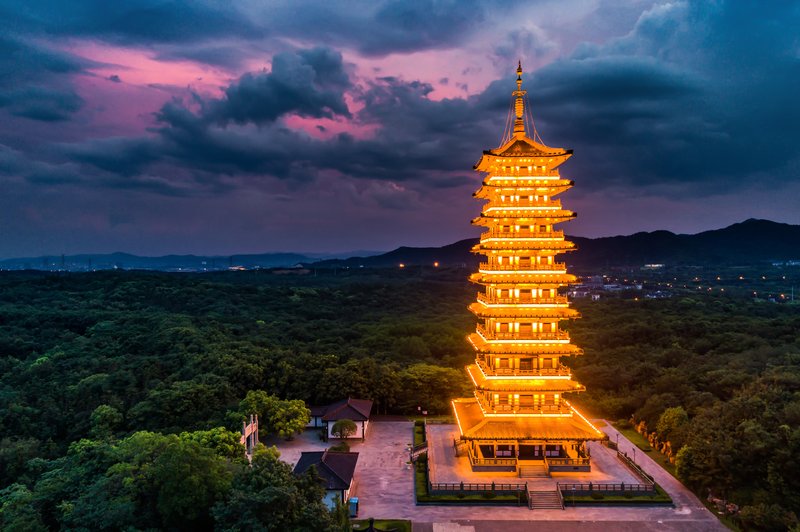 |
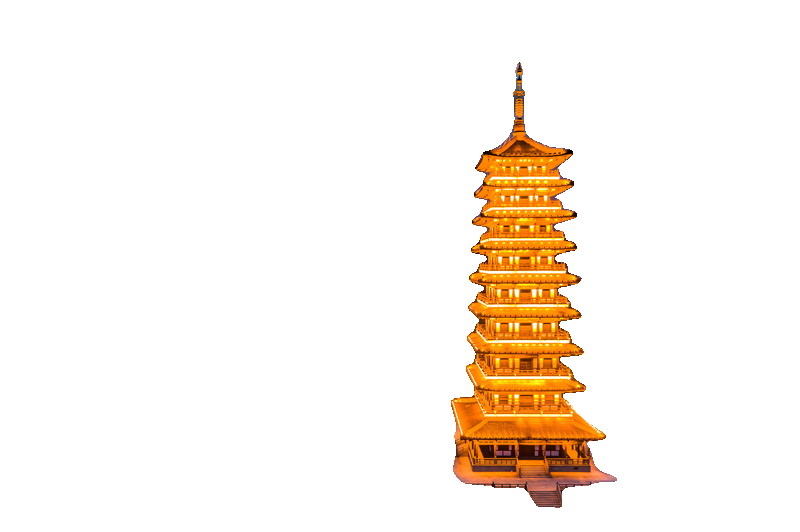 |
ℹ️ Info
Processed fully locally using rembg and
U2-Net local AI model.
No data ever leaves your network.Internally it also uses onnxruntime.
Imgcompress also uses Pillow for re-serialization of images.📸 Source of Original Image
Landscape with sunset in Yixing (Freepik), used for demonstration purposes.
🎯 Export Image by Target Specific Max Filesize
Need your image to be exactly under 500KB or 1MB? ImgCompress can calculate the required quality setting for you.
Now supports AVIF
The "Max Output Size" slider is available for both JPEG and AVIF formats. Since AVIF compresses better than JPEG, you can often fit a higher-quality image into the same file size limit.
| Step | Screenshot | Description |
|---|---|---|
| 1 | 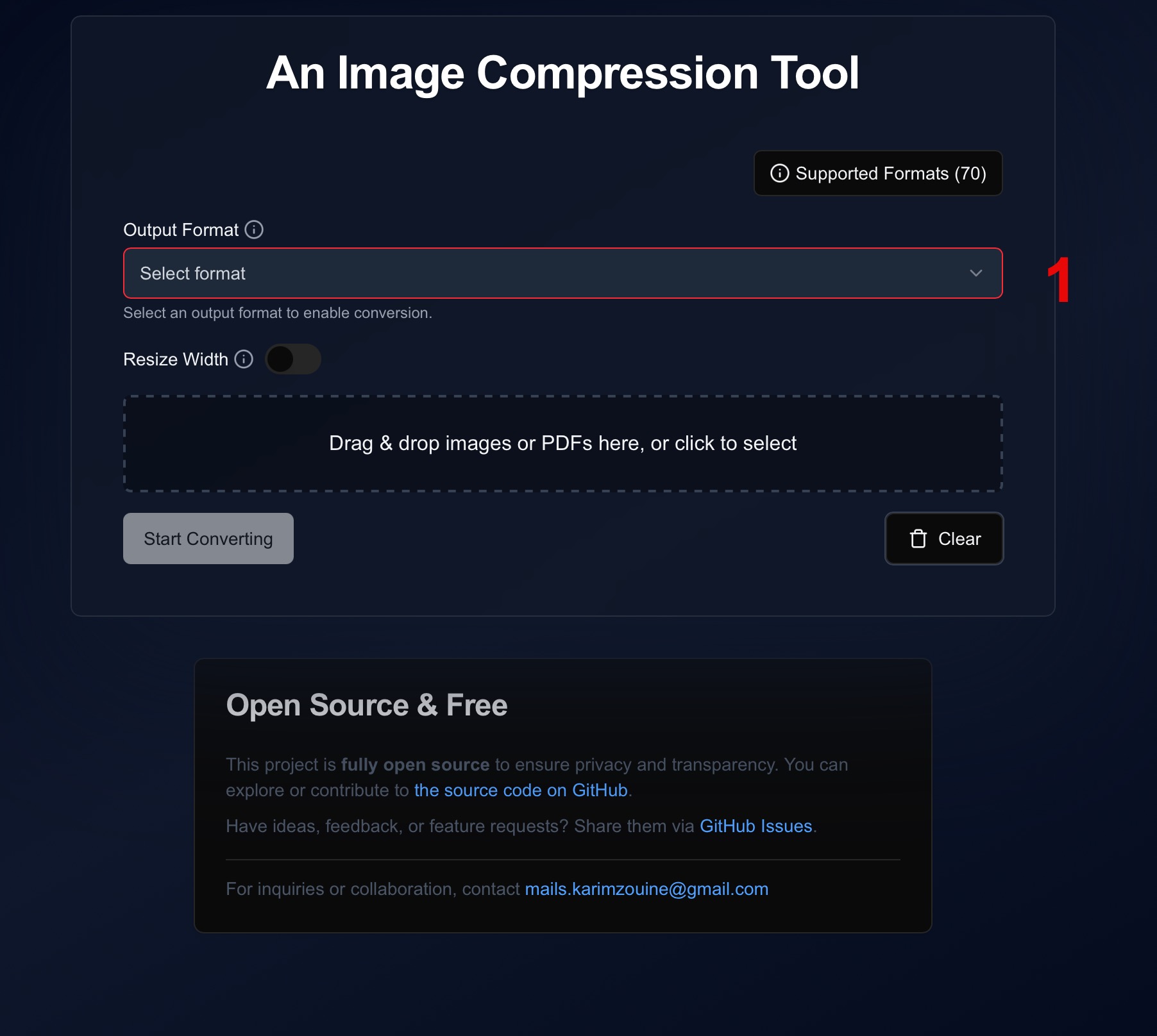 |
Select Format Choose JPEG or AVIF as the output format from the dropdown menu. |
| 2 | 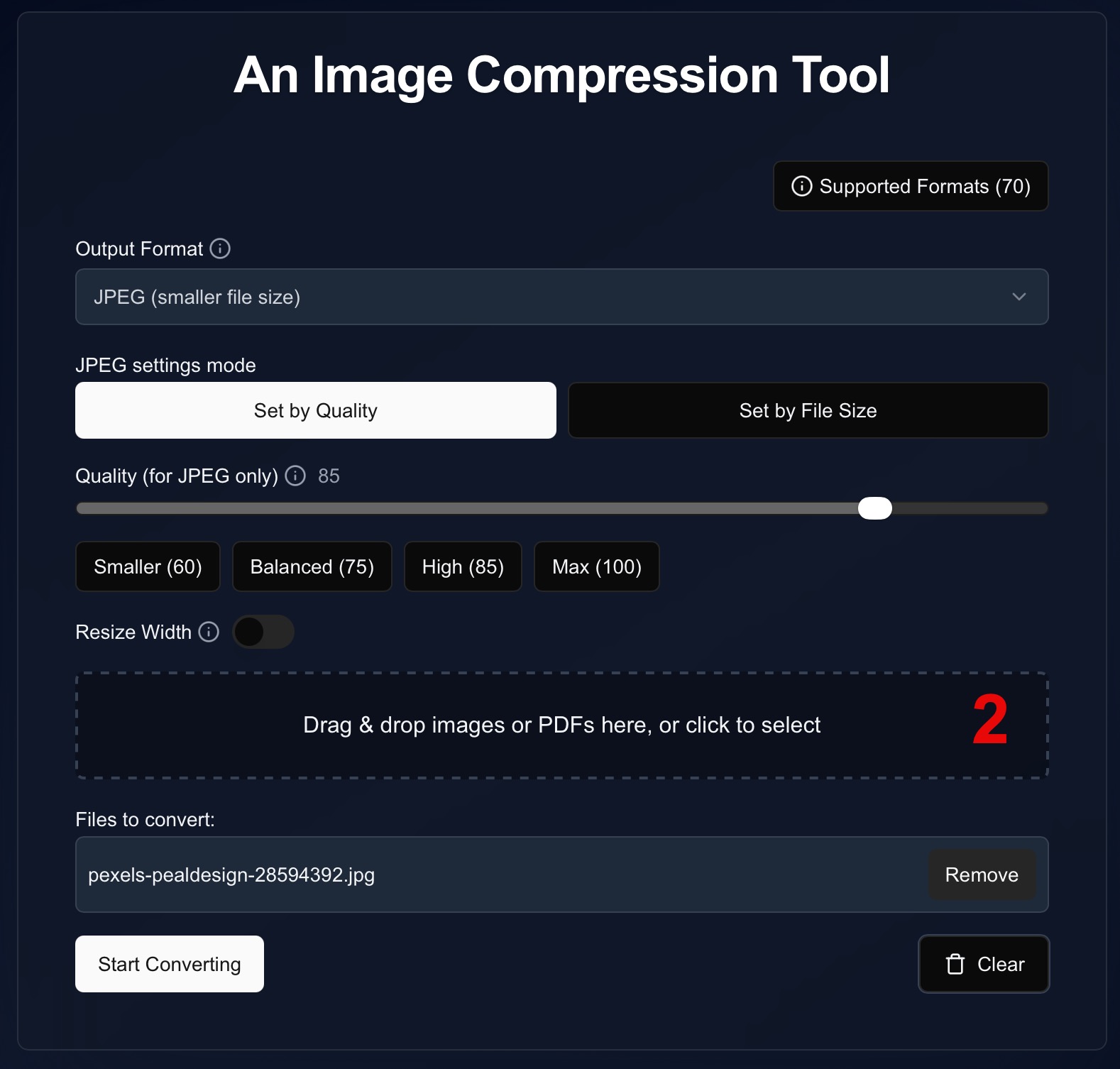 |
Upload Images Drag and drop your images into the processing area or click to select them. |
| 3 | 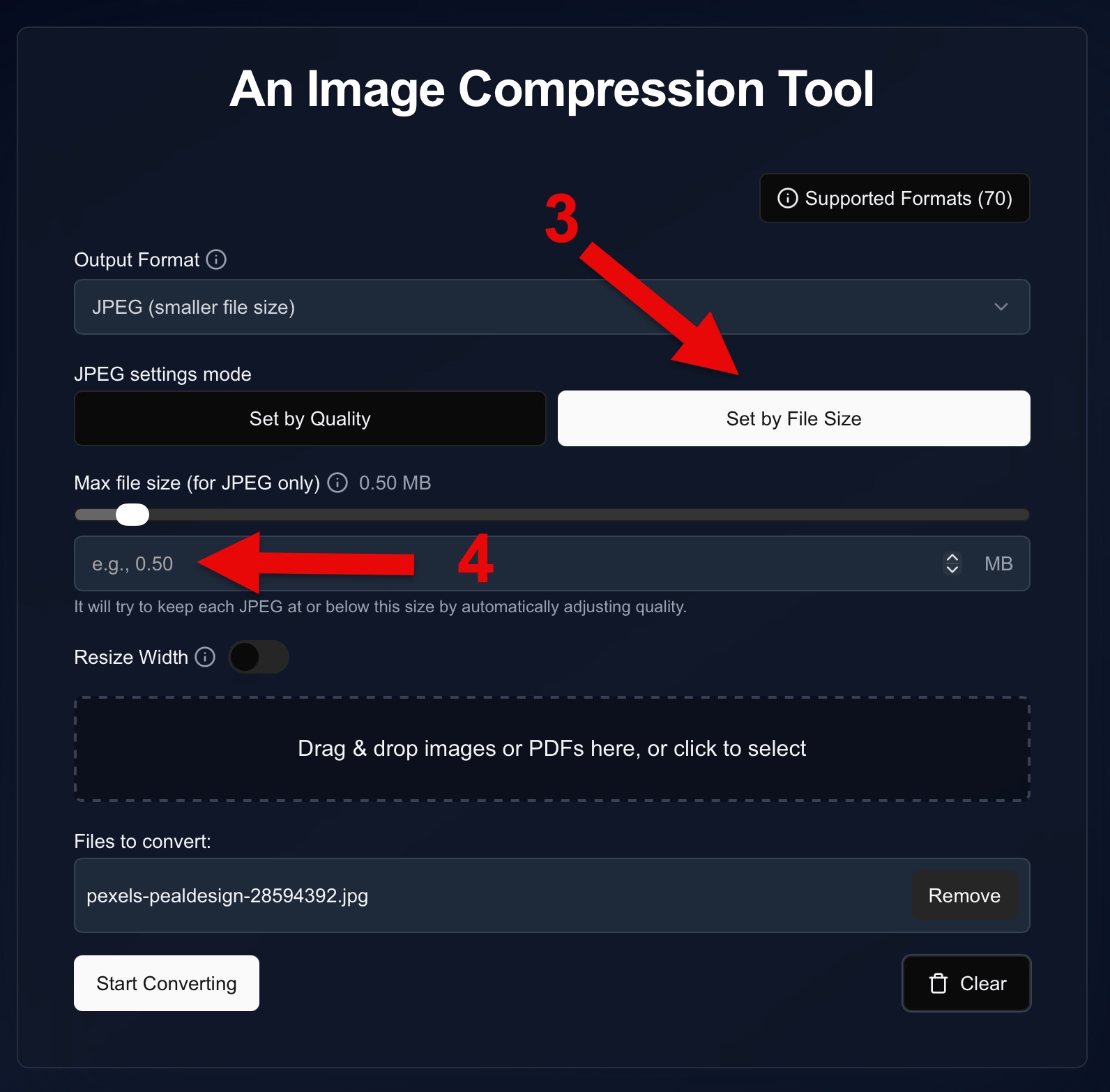 |
Configure Size Switch to the Set by File Size tab and enter your desired maximum size (e.g., 0.5 MB). |
| 4 | 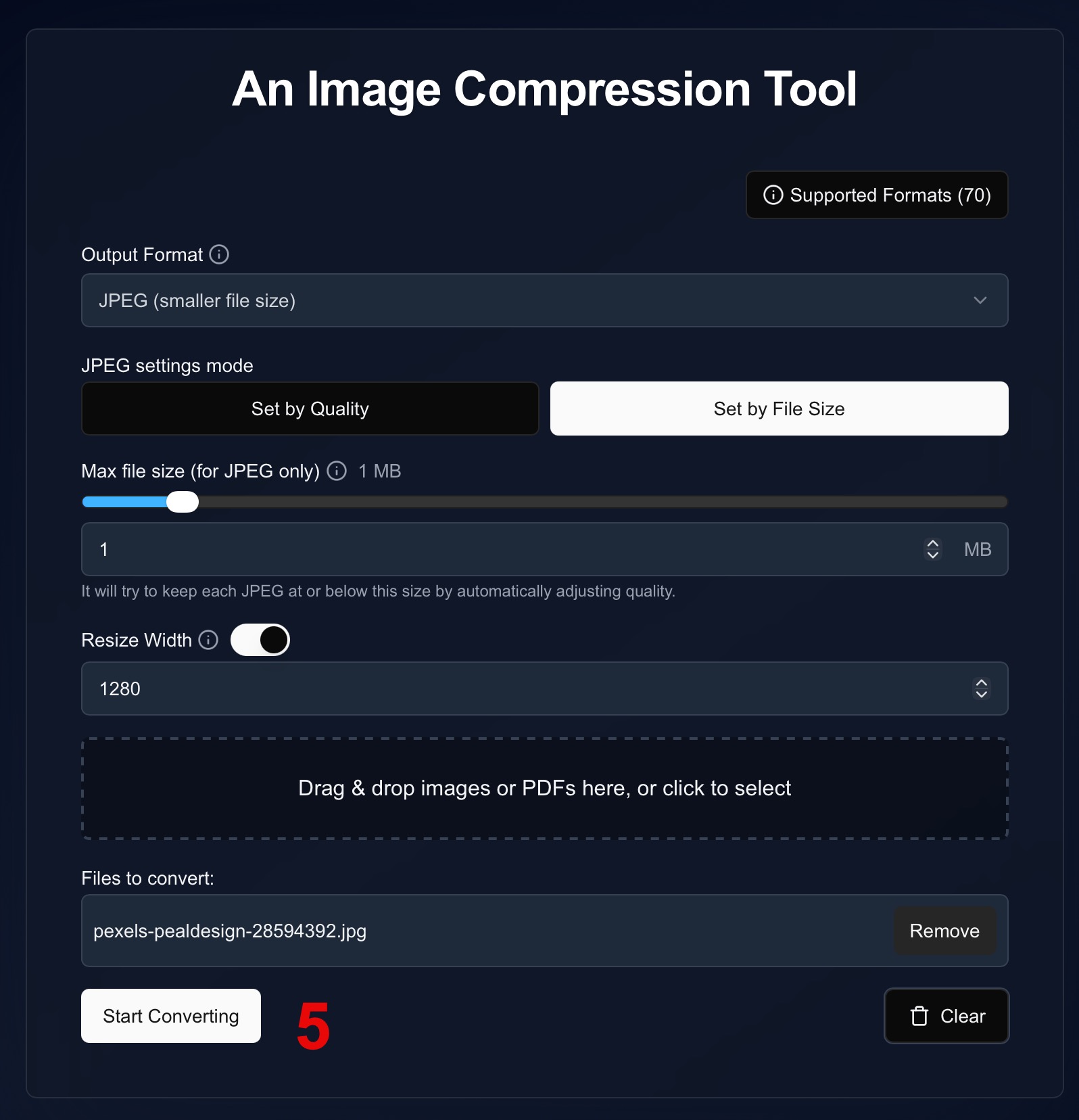 |
Process Click the Start Converting button to begin the compression process. |
| 5 | 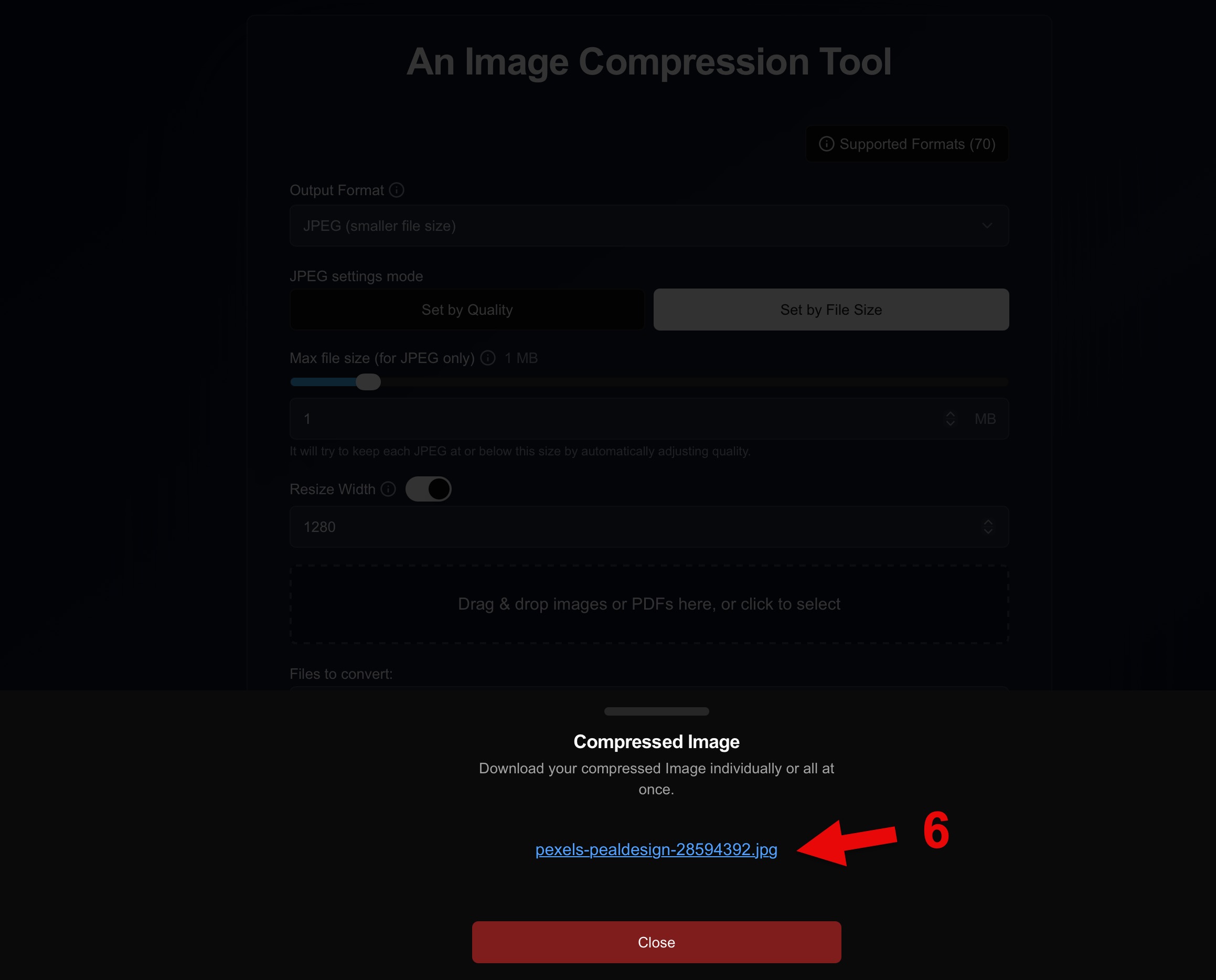 |
Download Once finished, click the download link to save your optimized image. |